.png?width=500&height=131&name=horiz-onwhite-noslogan%20(1).png)
To view examinations on the EVA device or check their status, tap on the menu button the top left in the home screen and tap on ‘Exams list'.-1.jpeg?width=225&height=400&name=rtaImage%20(13)-1.jpeg)
- The Exams list shows exams created in chronological order with the most recent at the top.
- An icon next to each exam indicates the sync status (upload to the EVA online portal) while in Opt-in mode.
One of these options might be shown:- Draft - if the exam has not yet been completed.
- In progress - if the exam is in the process of being synced.
- Uploaded - if sync to the EVA Portal is completed.
In 'Uploaded' status the examinations that finished uploading are displayed for 24 hours. Afterward, the exams can be viewed only on the EVA portal: https://eva.mobileodt.com.
-
- A USB symbol next to exam (in any state) indicates that an exam has been exported to the ZIP folder and ready to be copied manually via USB connection.
.jpeg?width=225&height=400&name=rtaImage%20(6).jpeg)
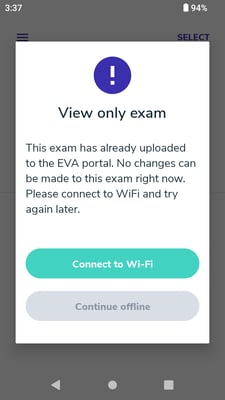
- If the device is not connected to Wi-Fi, an option to connect to Wi-Fi is presented. The upload process only works if the device is connected to the internet.
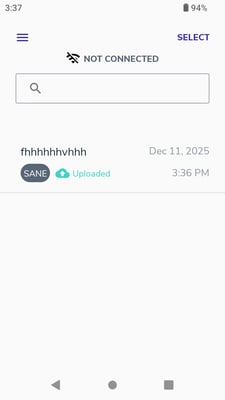
- If the device is not connected to Wi-Fi uploaded exams in the device will be available in ‘view mode’ only.
- No sync icon will be shown next to exams taken while in Opt-out mode.
An icon at the top of the screen will indicate that the device is currently in opt-out mode.
- Draft - if the exam has not yet been completed
-
- An icon will still indicate those exams that are ready for manual export via USB
-1%20(2)%20copy.png?width=225&height=90&name=rtaImage%20(8)-1%20(2)%20copy.png)
- An icon will still indicate those exams that are ready for manual export via USB
- To view any exam on the device, click on any of them and the system will redirect to edit the exam.
- Search bar is available on top of the exam list. Exams can be searched by patient’s Name, Last name or MRN.