.png?width=500&height=131&name=horiz-onwhite-noslogan%20(1).png)
A one time setup: Exams are exported as encrypted ZIP files protected by a password. To open them, you’ll need a password-protected ZIP extractor such as WinRAR, WinZip, 7-Zip, or a similar tool installed on your PC. On a Mac, the built-in Archive Utility can be used to open these files
Step 1: Connecting the EVA SafeView Device to a Computer
- Connect the EVA SafeView device to your computer using a USB Type-C cable.
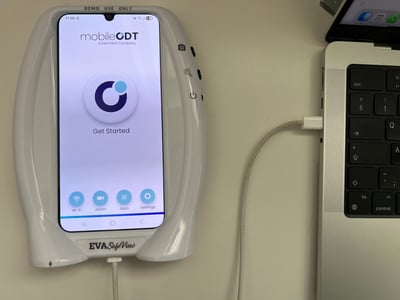
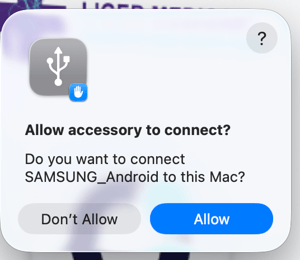
- If a pop-up message appears on your computer, confirm it.
- On your EVA SafeView, a notification will appear.

- Tap the USB notification to open USB settings.
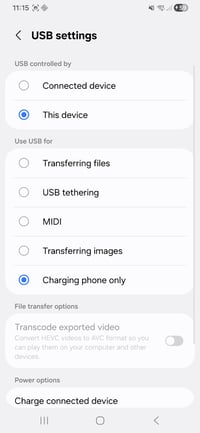
- Select "Transferring fles".

Note: If the notification pop up cannot be found, the proper settings can be adjusted directly from the device's Settings menu.
Settings -> Connected devices -> USB settings
Step 2: Copying Exams to Your Computer
-
If you are using a PC, follow these steps:
- Open the File Explorer of your local computer.
- Under This PC, go to: \SM-A256E\Internal shared storage\Documents\Eva exams\YourUserName
- Open the folder with your username. You will find the exported exams as ZIP files
.jpeg?width=499&height=220&name=rtaImage%20(8).jpeg)
- Copy the exam ZIP files to your local computer.
-
If you are using a Mac, follow these steps:
- One time setup: Install an Android File Transfer application, such as OpenMTP.
- Open the File Transfer application and navigate to: \Documents\Eva exams\YourUserName
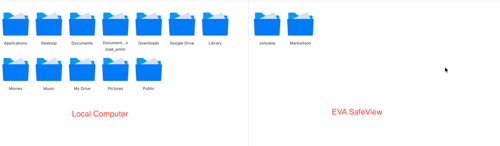
-
- Open the folder with your username. You will find the exported exams as ZIP files
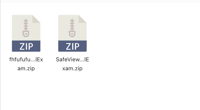
-
- Copy the exam ZIP files to your local computer.
Step 3: Extract the Exams on Your Computer
-
If you are using a PC, follow these steps:
- Right-click on the zip file and choose either:
- “Extract here” if you would like the exam folder to be placed in the same folder
- “Extract file” to place the exam file in another folder
- Right-click on the zip file and choose either:
.jpeg?width=483&height=173&name=rtaImage%20(9).jpeg)
-
- A message prompting you to enter the password for the ZIP file appears.
Type the password and click OK.
- A message prompting you to enter the password for the ZIP file appears.
.jpeg?width=463&height=236&name=rtaImage%20(10).jpeg)
-
- All exam images and PDF report are extracted from the zip file
.jpeg?width=455&height=169&name=rtaImage%20(11).jpeg)
-
If you are using a MAC, follow these steps:
- Double-click the ZIP file.
- A message prompting you to enter the password for the ZIP file appears.
Type the password and click OK.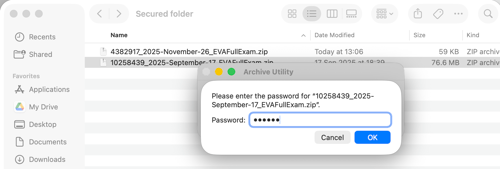
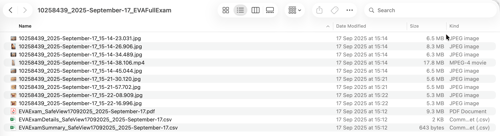
- All exam files - including images, videos, PDF report, and CSV reports, will be extracted to a folder with the same name as the ZIP file.
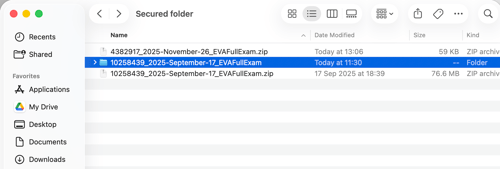
-
- Open the folder to access all the extracted exam files