.png?width=500&height=131&name=horiz-onwhite-noslogan%20(1).png)
Note: This article applies to EVA Pro and EVA SafeView using the current EVA App.
If you are using EVA Plus, refer to: EVA App (Plus) - Change User
Change user
If the user displayed on the "Welcome to the EVA System" screen is not yours, tap the drop down icon next to the user name.
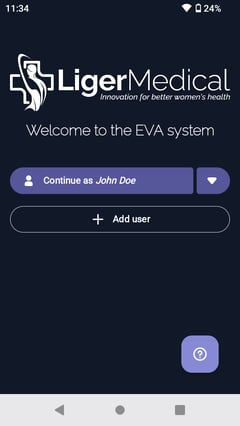
- The App shows all the users that were added to that particular device.
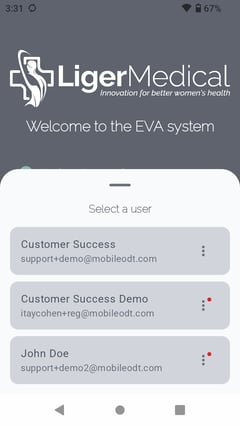
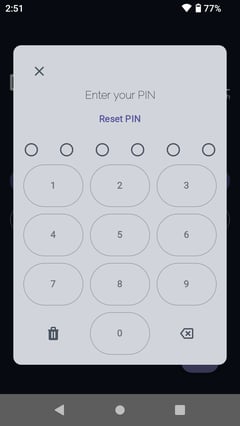
- From the users list, tap on your user name. An "Enter your PIN" pop-up message appears. Enter your PIN to access the EVA App.
You will have 5 attempts to enter the PIN correctly. If you do not remember the PIN, tap on ‘Forgot PIN?’ and it will redirect you to the ‘sign-in ‘screen’. On this screen, you
will be able to log in using your email and password.
will be able to log in using your email and password.
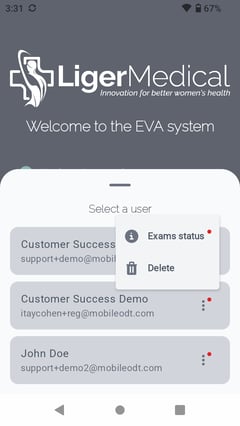
Exams Status
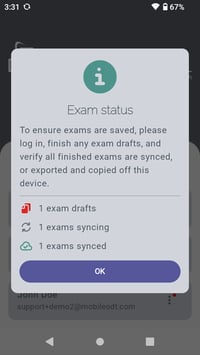
- A red dot is displayed next to users with unsaved exams.
- To view the exam status for each user, tap the three dots next to the user name and select "Exam Status".
- An information message describing the exam status pops up. Red, gray, and green icons are displayed next to the number of exams in each status:
- Unsaved exams, such as drafts, or exams not yet exported (for opt-out users).
- Exams still uploading (for opt-in users)
 . .
. .
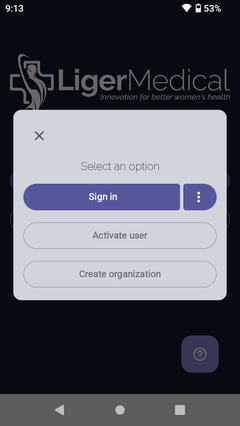
- If your email is not listed, swipe down the user list and tap "Add User".
- A "Select an option" pop-up message appear:
- Tap "Sign in" - If you have already activated your EVA user account and set a password, you can log in to the EVA device.
- Tap "Activate user" - If you are new to the EVA System and have not set a password on an EVA device or the EVA Portal, you will need to complete the Set up process first.
Remover user
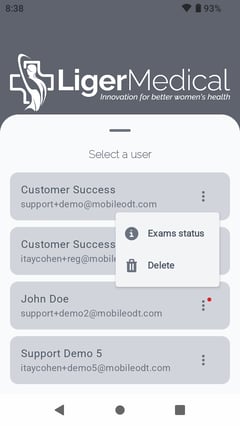
- If you wish to remove a user from the device, tap the drop down icon next to the user name.
- The App shows all the users that were added to that particular device.
- Tap the three dots next to the user you want to remove and select "Delete".
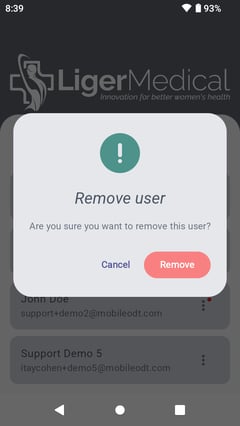
- For users with saved exams, or when no exams are present, a “Remove User” confirmation pop-up is displayed. Select "Remove". The user is removed from this device.
- For users with unsaved exams, an “Unable to remove user” information message is displayed.
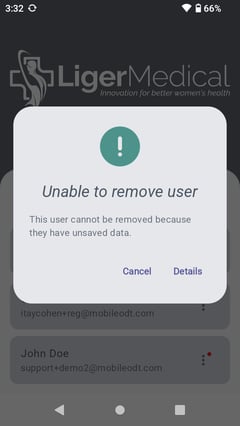
- Tap "Cancel" to close this message, or tap "Details" to view the ‘Exam Status’ information message.
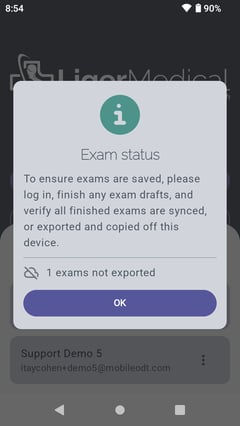
A user with unsaved exams cannot be removed. Draft exams must be finished, and all finished exams must be fully synced or exported before the user can be removed.