.png?width=500&height=131&name=horiz-onwhite-noslogan%20(1).png)
EVA customers can create their own organization accounts directly through the EVA App, without assistance from MobileODT Support.
This capability is intended for organization administrators, clinical admins, or independent users (such as private clinics).
If you are part of a large organization, please contact your administrator to create your user account.
Steps to create a new EVA organization account
- Turn on your EVA device
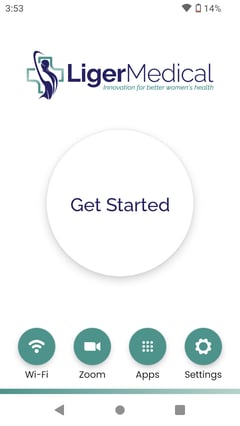
- Tap on 'Get Started'
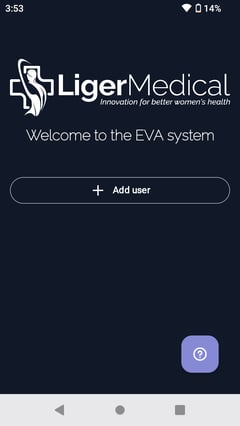
- On the "Welcome to the EVA system" screen, tap 'Add user'
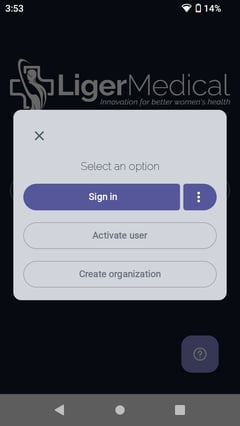
- Tap "Create organization".
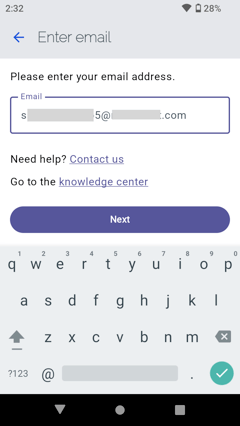
- Enter your email address and tap "Next".
- The "Enter verification code" page appears
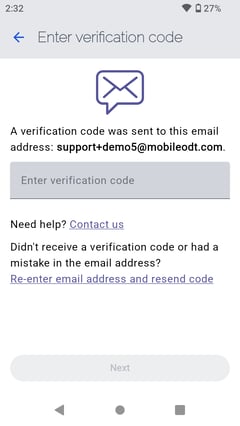
- A verification code has been sent to your email.
Check your inbox for an email titled “Activate your new EVA System account” containing your verification code.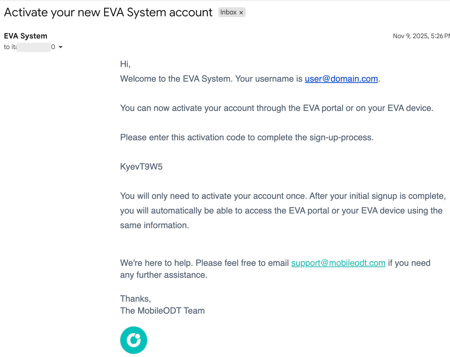
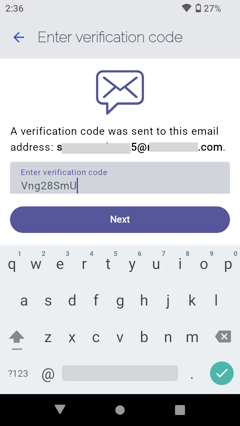
- Enter the verification code and tap "Next".
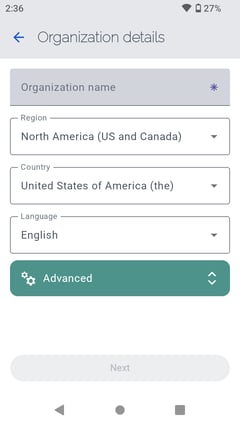
- Organization details:
- Enter your organization account name and details.
- To configure additional settings, tap “Advanced.”
- Tap "Next".
-
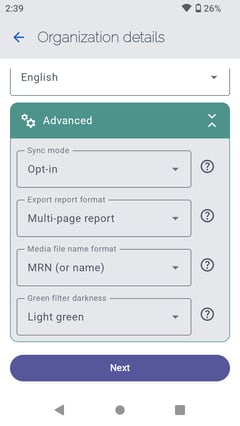
- Sync mode
- Opt-in: Media captured on-device is automatically synced to the cloud.
- Opt-out: Media is not synced to the cloud, and must be exported over a USB connection from the device.
- Export report format
- Multi-page report: Includes complete exam details. May span several pages.
- Single-page report: Contains basic exam details. Length will not exceed one page.
- Assessment report: Provides exam summary and up to 2 images. Intended to be printed and filled out by hand.
- Media file name format
- Exam ID and media file timestamp: If 'Exam ID and media file timestamp' is selected, the Exam ID and media file timestamp will be included in the media file name.
- MRN (or name): If 'MRN (or name)' is selected, the MRN will be included in the media file name. If MRN is not available, the patient's name will be used instead.
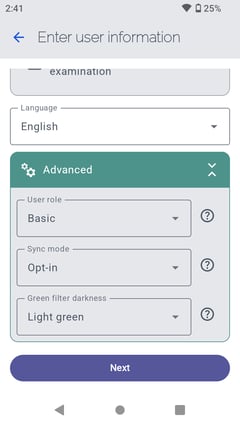
- Green filter darkness: Exam media can be enhanced with a green filter to better visualize vasculature patterns. Two levels of darkness are available: Light green and Dark green.
- Sync mode
This flow will create an initial user that will act as a "User manager"
- User information:
- Fill in user information for the initial administrator account.
- To view additional options, tap “Advanced.”
- Tap “Next.”
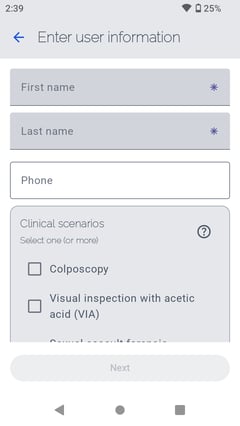
Clinical scenarios - Predefined input fields and user flow through the EVA System for specific procedures. For more info, refer to: EVA System Clinical scenarios
-
- Colposcopy - Used in a visual inspection of the cervix during routine cervical cancer screening.
- Visual Inspection with Acetic Acid (VIA) - Used in visual inspection with acetic acid for primary cervical cancer screening.
- Sexual Assault Forensics Examination - Used in recording visual evidence during a sexual assault forensic exam by a trained practitioner
User Role: The EVA System includes two user roles: Basic User and Clinical Admin User. Both roles allow users to create exams using the EVA Device. The key difference lies in the level of access within the EVA Portal.
-
- Basic User: Can create an Exam in the EVA Device. In the EVA Portal, can view, edit, delete, and export their own exams
- Clinical Admin: Can create an Exam in the EVA Device. All Basic User permissions, plus full access to all exams within the EVA Account in the EVA Portal
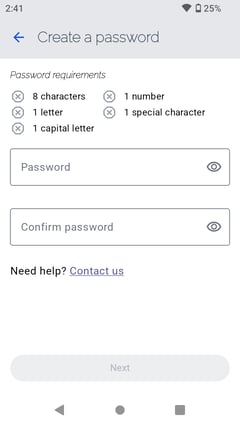
- Enter a password and tap “Next.”
Password must have at least: 8 characters, 1 letter, 1 capital letter, 1 number, 1 special character
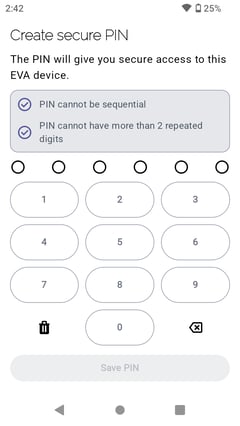
- Create secure PIN and tap "Save PIN".
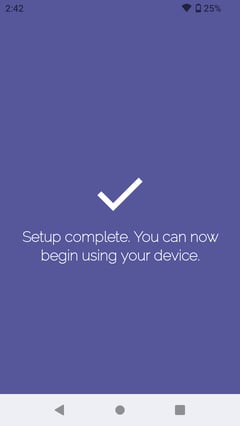
- The new organization and user setup is complete.
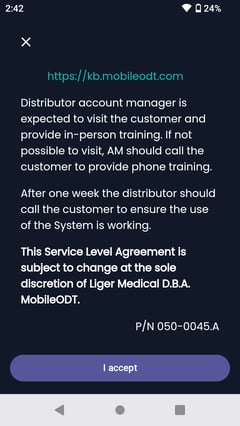
- Accept the Terms of Use - Scroll to the bottom of the Terms of Use page and tap “I accept”.
- The “Start Exam” page appears.
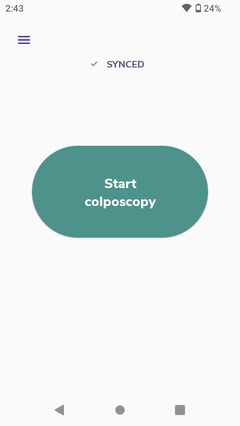
-
You will receive a “Getting Started with the EVA System” email with your organization account name and user details.
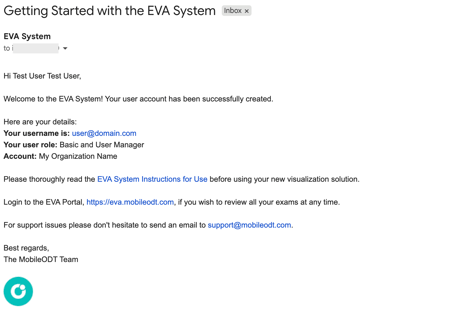
- Your EVA organization account has been created. You can now log in to the EVA Portal (https://eva.mobileodt.com/) and add additional users to your organization.
- (Optional) Add More Users
- To add more users to your organization account, click on “Users” in the left menu.
For more information how to create new users, refer to: Managing Users in the EVA System
- To add more users to your organization account, click on “Users” in the left menu.